---
title: Setting Up Livestream
description: Create a livestream channel, set options, and connect your encoder with OBS or Wirecast.
---
[Skip to content](https://helpdesk.target-video.com/hc/en-us/articles/21351384122642-setting-up-livestream#main-content)
[More support](https://helpdesk.target-video.com/kb-tickets/new?hsLang=en)
[](https://target-video.com/)
Open main navigation
Close main navigation
- [More support](https://helpdesk.target-video.com/kb-tickets/new)
How can we help you?
- There are no suggestions because the search field is empty.
1. [TargetVideo Knowledge Base](https://helpdesk.target-video.com/?hsLang=en)
2. [Content Management](https://helpdesk.target-video.com/content-management?hsLang=en)
3. [Livestream](https://helpdesk.target-video.com/content-management?hsLang=en#livestream)
# Setting Up Livestream
## Create a livestream channel, set options, and connect your encoder with OBS or Wirecast.
### **Setting Up Livestream**
With TargetVideo, you can easily broadcast and manage your live events to a global audience. To get started with live streaming, we recommend using **Wirecast** or **OBS**.
### Steps:
**Login** to CMS and select your site.
In the left-hand menu, click on the **LIVESTREAM** option, then click the **CREATE CHANNEL** button.

Here, you can set up and start your live streaming server:
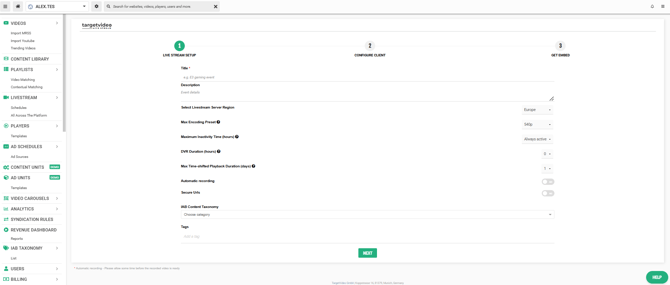
**Options:**
- **Title**: Add a title for your livestream.
- **Description** (optional): Add a description for your livestream.
- **Livestream Server Region**: Choose between **USA** or **Europe**.
- **Max Encoding Preset**: Select the resolution from **540p** to **1080p**.
- **Maximum Inactivity Time**: Define the auto-stop time for the server if there is no activity.
- **DVR Duration**: If enabled, viewers can rewind your live stream up to 24 hours into the past.
- **Max Time-shifted Playback Duration**: This allows viewers to start watching a live stream from an earlier time, enabling them to join a show that's already in progress or to watch a completed show. You can enable time-shifted viewing for content up to **14 days** old.
- **Automatic Recording**: When enabled, the stream will be recorded from the moment streaming begins and saved once the recording is stopped. You can also make short recordings during the stream as needed.
- **IAB Content Taxonomy**: Add an IAB taxonomy category for your content.
- **Tags**: Add custom tags for the video.
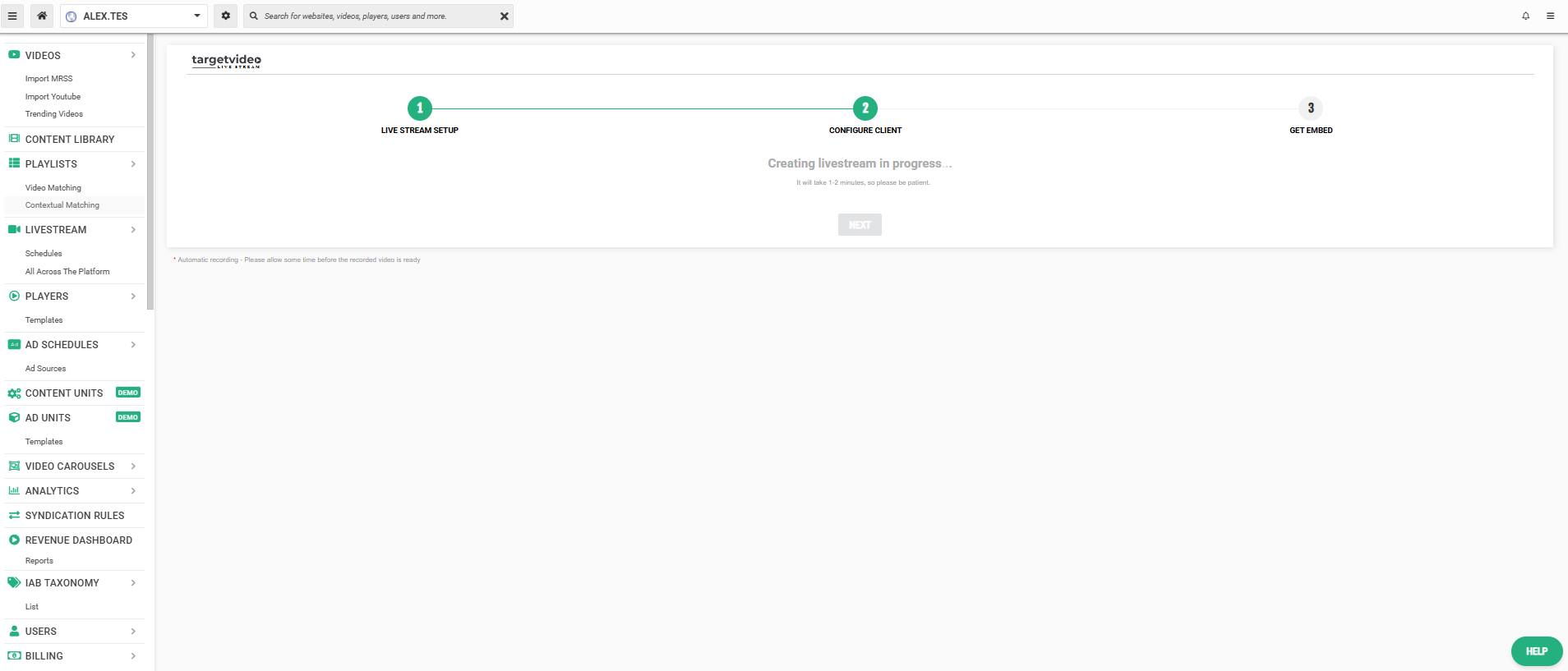
Click on the **NEXT** button and wait for your live streaming instance to be set up. This typically takes up to **2 minutes**.
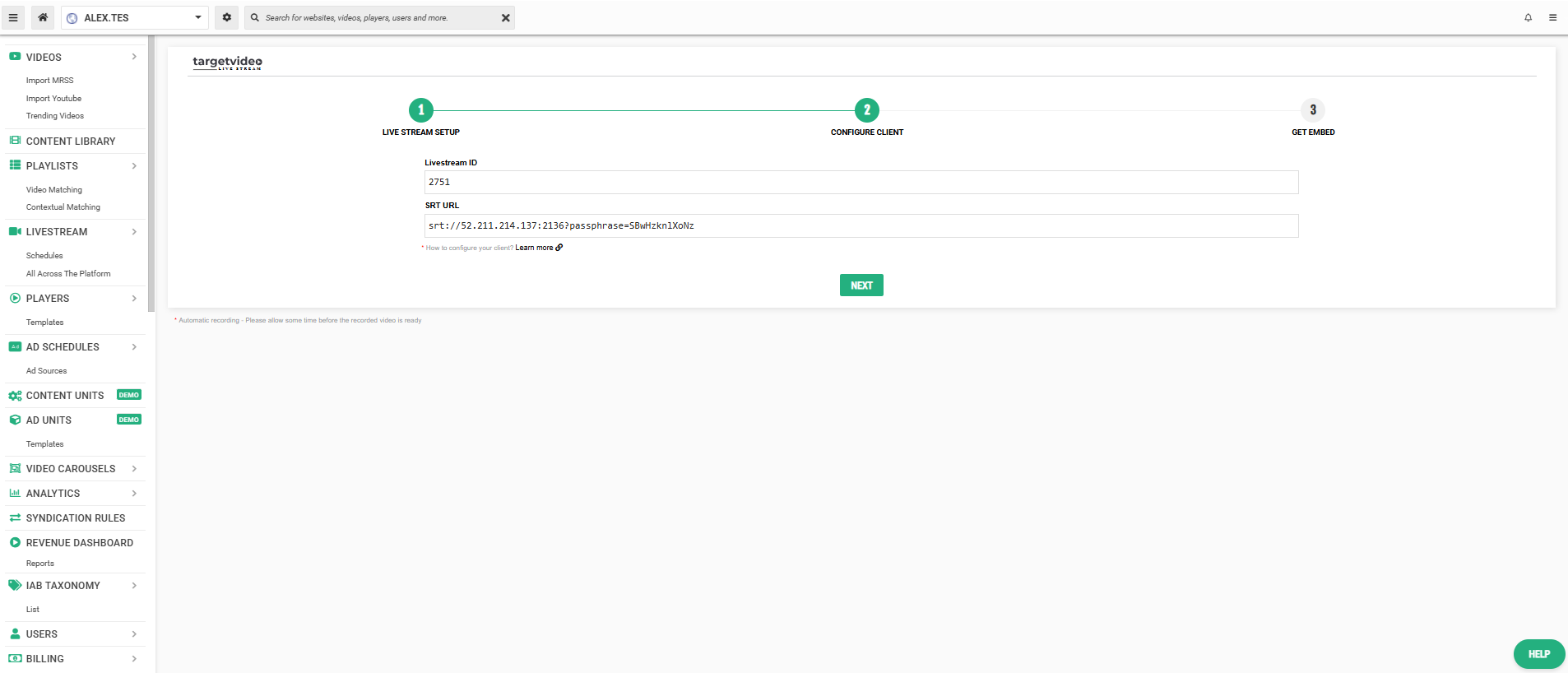
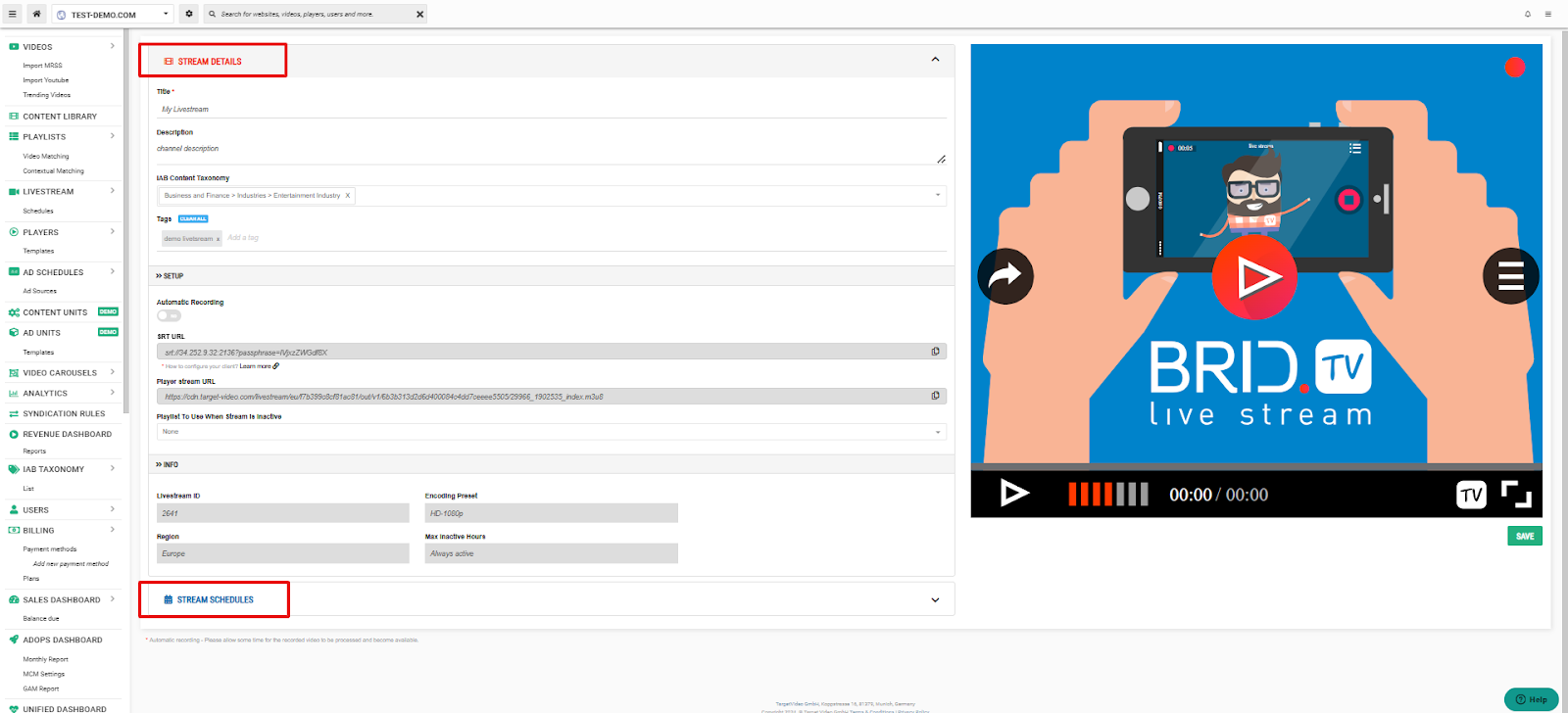
Once the server resources are allocated, you will see your **Livestream Channel ID** and an **SRT Entry Point URL**. You can use this URL to connect your source stream to TargetVideo. Use the URL to set up your output settings in your encoding software.
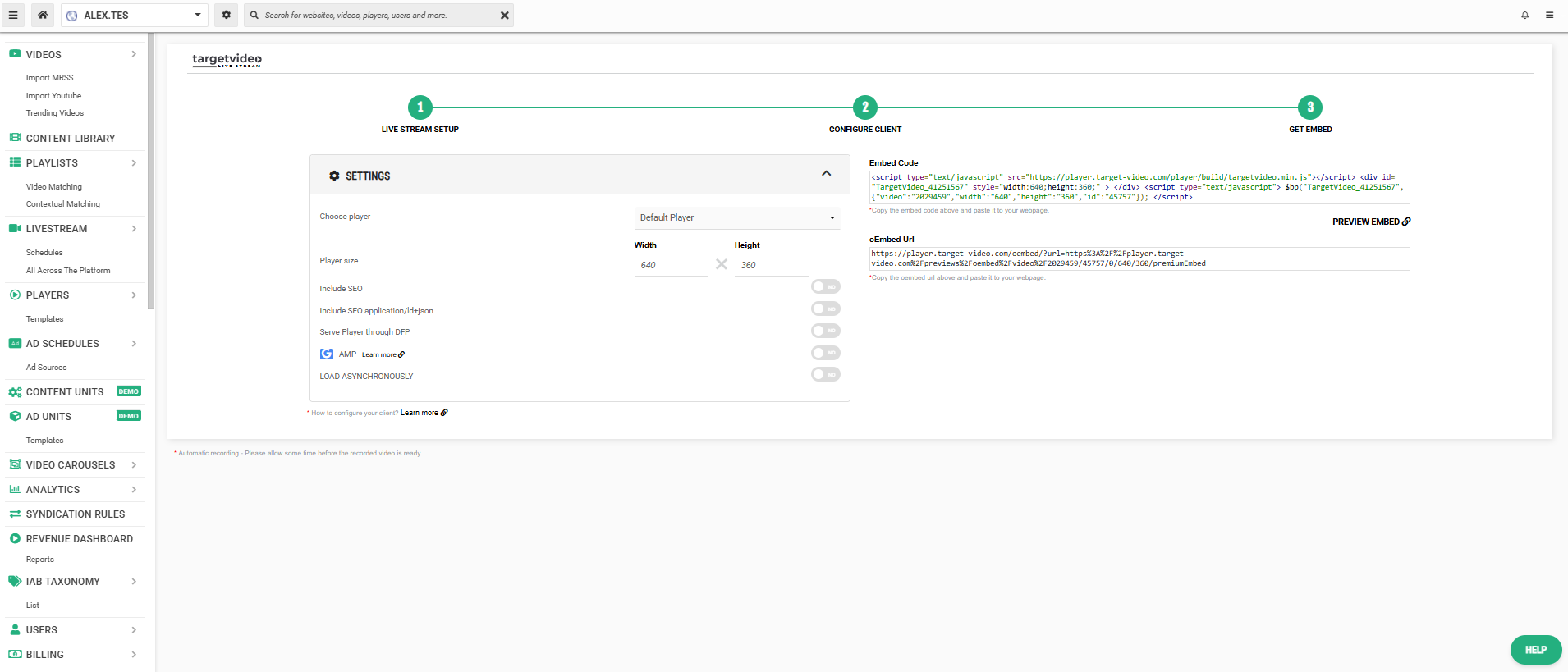
Click **Next** to grab the **embed code**.
All your livestreams will be available in the **Livestream** section of CMS.
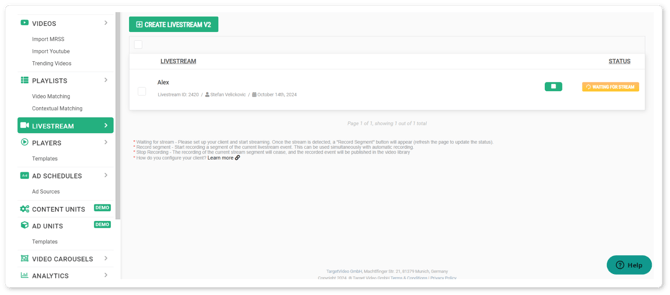
Editable details of the livestream channel, SRT URL, and related schedules can be found under each created channel.
### **Setting Up Your Encoder (OBS)**
1. Launch the **OBS Studio** software and click on the **Settings** menu.
2. Click on the **Stream** section and, in the **Service** drop-down menu, select **Custom**.
3. In the **Server** field, enter the **SRT URL**.
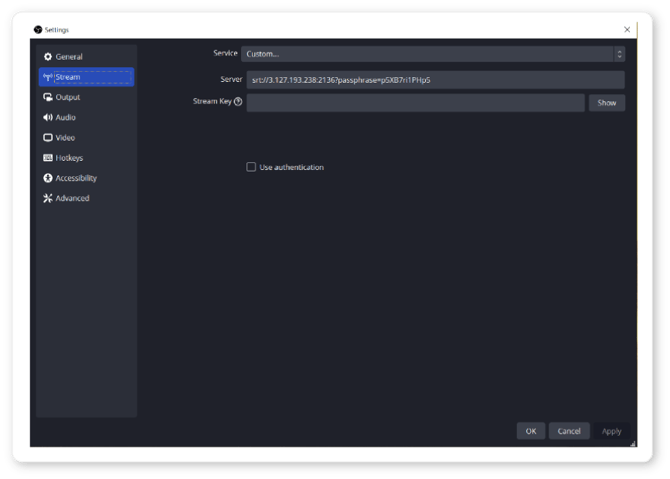
4. Click **Apply** and **OK**.
5. Start the stream by clicking the **Start Streaming** button.
Please allow up to **2 minutes** for our system to pick up your stream and start serving it.
- [Video Player](https://helpdesk.target-video.com/video-player?hsLang=en#main-content)
- [Player Templates](https://helpdesk.target-video.com/video-player?hsLang=en#player-templates)
- [General Settings](https://helpdesk.target-video.com/video-player?hsLang=en#general-settings)
- [Amplify Engagement](https://helpdesk.target-video.com/video-player?hsLang=en#amplify-engagement)
- [Sticky Player](https://helpdesk.target-video.com/video-player?hsLang=en#sticky-player)
- [Looks and Skins](https://helpdesk.target-video.com/video-player?hsLang=en#looks-and-skins)
- [Frame](https://helpdesk.target-video.com/video-player?hsLang=en#frame)
- [Share Options](https://helpdesk.target-video.com/video-player?hsLang=en#share-options)
- [Ads](https://helpdesk.target-video.com/video-player?hsLang=en#ads)
- [Plugins](https://helpdesk.target-video.com/video-player?hsLang=en#plugins)
- [Event Callbacks](https://helpdesk.target-video.com/video-player?hsLang=en#event-callbacks)
- [Advanced Player Configuration](https://helpdesk.target-video.com/video-player?hsLang=en#advanced-player-configuration)
- [Outstream Ad Units](https://helpdesk.target-video.com/outstream-ad-units?hsLang=en#main-content)
- [Ad Unit Templates](https://helpdesk.target-video.com/outstream-ad-units?hsLang=en#ad-unit-templates)
- [In-content Ad Unit General Settings](https://helpdesk.target-video.com/outstream-ad-units?hsLang=en#in-content-ad-unit-general-settings)
- [In-content Ad Unit Sticky Feature](https://helpdesk.target-video.com/outstream-ad-units?hsLang=en#in-content-ad-unit-sticky-feature)
- [In-content Ad Unit - Ads](https://helpdesk.target-video.com/outstream-ad-units?hsLang=en#in-content-ad-unit-ads)
- [In-slide Ad Unit General Settings](https://helpdesk.target-video.com/outstream-ad-units?hsLang=en#in-slide-ad-unit-general-settings)
- [In-slide Ad Unit - Ads](https://helpdesk.target-video.com/outstream-ad-units?hsLang=en#in-slide-ad-unit-ads)
- [Event callbacks](https://helpdesk.target-video.com/outstream-ad-units?hsLang=en#event-callbacks)
- [Plugins](https://helpdesk.target-video.com/outstream-ad-units?hsLang=en#plugins)
- [Monetization](https://helpdesk.target-video.com/monetization?hsLang=en#main-content)
- [Ad Sources](https://helpdesk.target-video.com/monetization?hsLang=en#ad-sources)
- [Ad Schedules](https://helpdesk.target-video.com/monetization?hsLang=en#ad-schedules)
- [Content Management](https://helpdesk.target-video.com/content-management?hsLang=en#main-content)
- [Video Management](https://helpdesk.target-video.com/content-management?hsLang=en#video-management)
- [Video Import](https://helpdesk.target-video.com/content-management?hsLang=en#video-import)
- [Playlists Management](https://helpdesk.target-video.com/content-management?hsLang=en#playlists-management)
- [Embedding](https://helpdesk.target-video.com/content-management?hsLang=en#embedding)
- [Livestream](https://helpdesk.target-video.com/content-management?hsLang=en#livestream)
- [OTT Application](https://helpdesk.target-video.com/content-management?hsLang=en#ott-application)
- [Syndication](https://helpdesk.target-video.com/content-management?hsLang=en#syndication)
- [Digital Rights Management](https://helpdesk.target-video.com/content-management?hsLang=en#digital-rights-management)
- [Content Units](https://helpdesk.target-video.com/content-management?hsLang=en#content-units)
- [AI Content Matching](https://helpdesk.target-video.com/content-management?hsLang=en#ai-content-matching)
- [General](https://helpdesk.target-video.com/general?hsLang=en#main-content)
- [Site Administration](https://helpdesk.target-video.com/general?hsLang=en#site-administration)
- [User Administration](https://helpdesk.target-video.com/general?hsLang=en#user-administration)
- [Announcements](https://helpdesk.target-video.com/general?hsLang=en#announcements)
- [FAQs](https://helpdesk.target-video.com/general?hsLang=en#faqs)
- [Billing](https://helpdesk.target-video.com/billing?hsLang=en#main-content)
- [Payment](https://helpdesk.target-video.com/billing?hsLang=en#payment)
- [Bandwidth](https://helpdesk.target-video.com/billing?hsLang=en#bandwidth)
- [Advertising, Reports & Analytics](https://helpdesk.target-video.com/advertising-reports-analytics?hsLang=en#main-content)
- [Ads Playback & Troubleshooting](https://helpdesk.target-video.com/advertising-reports-analytics?hsLang=en#ads-playback-troubleshooting)
- [Reports & Analytics](https://helpdesk.target-video.com/advertising-reports-analytics?hsLang=en#reports-analytics)
- [Pre Bidding](https://helpdesk.target-video.com/advertising-reports-analytics?hsLang=en#pre-bidding)
- [Contextual Ads Targeting](https://helpdesk.target-video.com/advertising-reports-analytics?hsLang=en#contextual-ads-targeting)
- [Premium Demand Program](https://helpdesk.target-video.com/advertising-reports-analytics?hsLang=en#premium-demand-program)
- [Platform Updates](https://helpdesk.target-video.com/platform-updates?hsLang=en#main-content)
- [TargetVideo Platform Release 8.0](https://helpdesk.target-video.com/platform-updates?hsLang=en#targetvideo-platform-release-8-0)
- [TargetVideo WP Plugin](https://helpdesk.target-video.com/targetvideo-wp-plugin?hsLang=en)
- [FAQs](https://helpdesk.target-video.com/faqs?hsLang=en)
[](https://target-video.com)
Koppstrasse 16, 81379, Munich, Germany
Copyright © 2025, TargetVideo GmbH