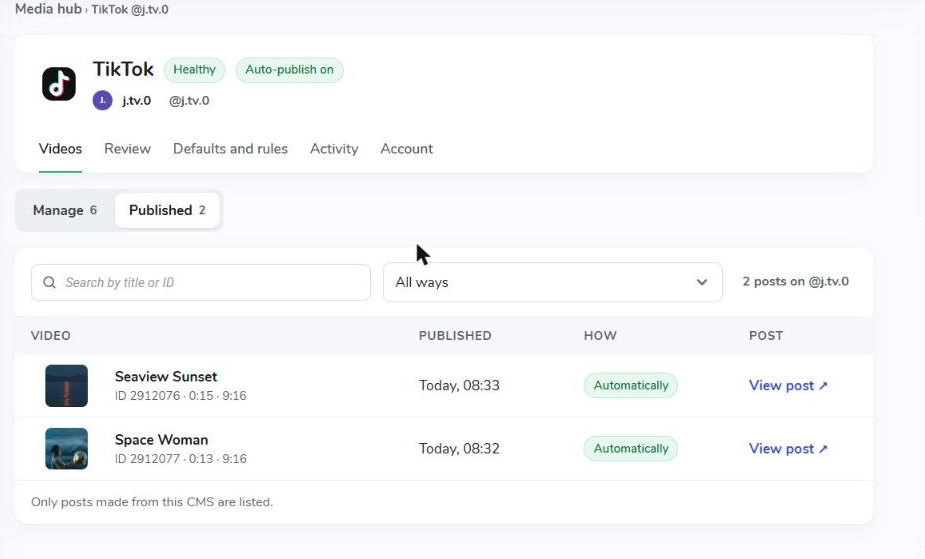
Every connected account has its own page. The header shows the platform, the account name and handle, its health and what happens to new videos (for example New videos: review). Below it are five tabs.
|
Tab |
What you do there |
|---|---|
|
Videos |
Publish videos from your library and see what was posted (Manage, Published) |
|
Review |
Check and approve or reject new videos before they are posted. A number on the tab shows how many are waiting. |
|
Defaults and rules |
Decide what happens to new videos and set the default caption, hashtags and platform settings |
|
Activity |
The full history of this account |
|
Account |
Connection details, permissions, billing, Reconnect and Disconnect |
The Videos tab has two views: Manage lists every video in your library with its status on this account, and Published lists the posts made from the CMS.
How to Publish Videos from Your Library
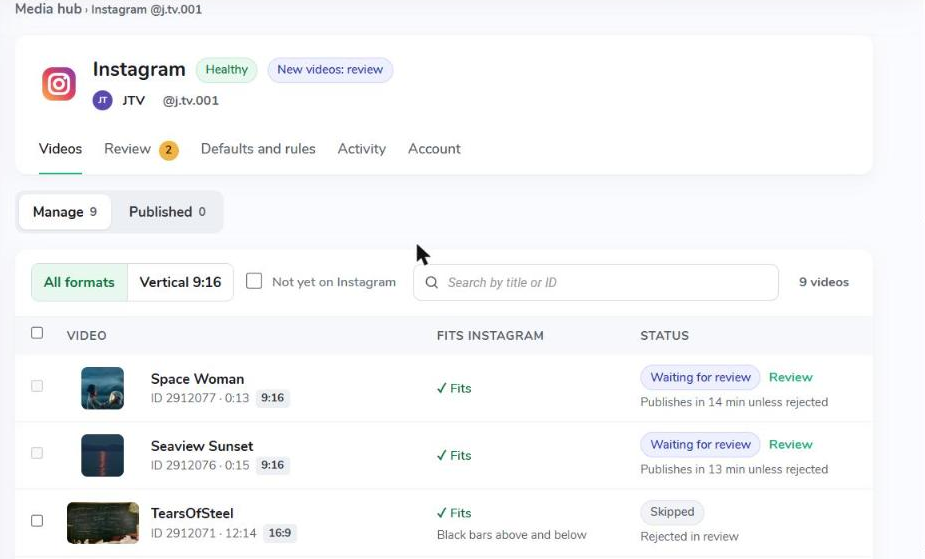
- Open Media Hub and click the account you want to publish to.
- Go to Videos › Manage.
- Use the filters to find your videos:
- All formats or Vertical 9:16 only (shown when Also publish horizontal videos is on; otherwise the list shows only vertical videos).
- The Not yet on Instagram switch hides videos already posted.
- Search by title or video ID.
- Check the Fits Instagram (or TikTok, YouTube) column to see how each video will look (see the table below).
- Tick one or more videos.
- Click Publish now in the bar at the bottom. The bar tells you where the videos go, and a message confirms how many videos were queued.
Publish now always skips review. It uses the account's Defaults and rules and posts right away, even when new videos on this account go to review.
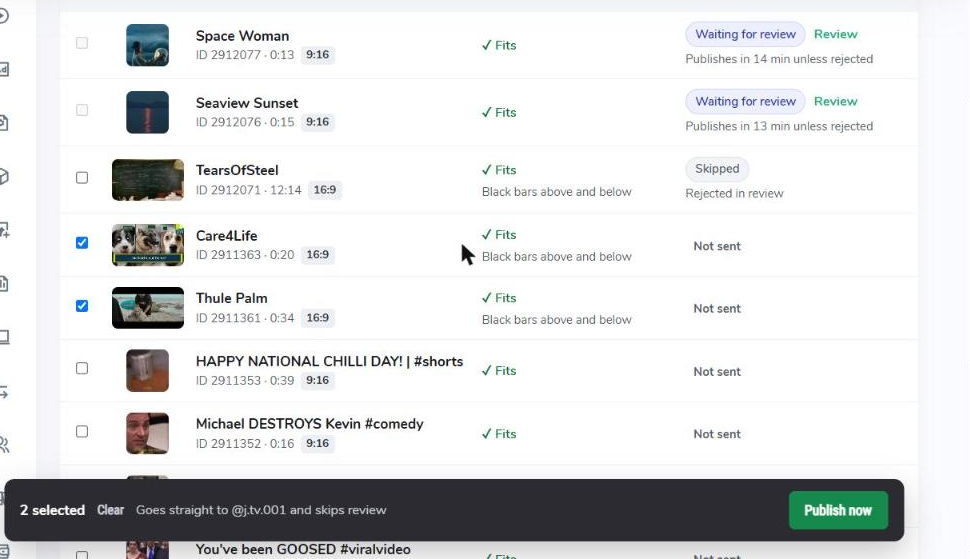
What Does the Fits Column Mean?
|
Value |
Meaning |
|---|---|
|
✓ Fits |
The video can be published as it is |
|
✓ Fits · Black bars above and below |
A horizontal video on a vertical feed (Instagram, TikTok) |
|
✓ Short / ✓ Regular video |
YouTube: vertical videos up to 3 minutes become Shorts, others regular videos |
|
Too long · 12:14 of max 10:00 |
Longer than the platform allows; it can't be published |
|
Not allowed · Imported from YouTube |
The video came from YouTube, so it is not uploaded back there |
What Does the Status Column Mean?
|
Status |
Meaning |
|---|---|
|
Not sent |
Never published to this account |
|
Waiting for review |
In the Review tab; it shows when it will be posted automatically, or that it stays until you decide |
|
Queued |
Waiting to upload, for example right after Publish now |
|
Publishing… Waiting for Instagram to finish |
Uploaded; the platform is still processing it |
|
Preparing… (YouTube) |
The CMS is writing the auto description and chapters before upload (requires the CMS auto transcribe permission) |
|
Published · See in Published |
Live on the platform |
|
Skipped · reason |
Not published, with the reason: too long, not a vertical video, rejected in review, turned off for this video, imported from YouTube |
|
Failed · Retry |
The upload did not succeed. Click Retry to try again. |
Videos that are already published can't be selected again, so the same video is never posted twice to one account.
Where Can I See What Was Published?
Go to Videos › Published. It lists the posts on this account, newest first: the video, when it was published, how (Automatically or Manually) and a View post link. Filter by how it was published, or search by title or video ID.
Posts made directly in the Instagram, TikTok or YouTube app are not listed.